

On your phone
Nibit on your home screen
Our mobile app is on its way. Until it lands, the website is built to work on your phone, and you can add it to your home screen so it opens like any other app, with an icon of its own and no browser bars.
It takes about a minute. Pick your phone:
01 iPhone
Add Nibit from Safari
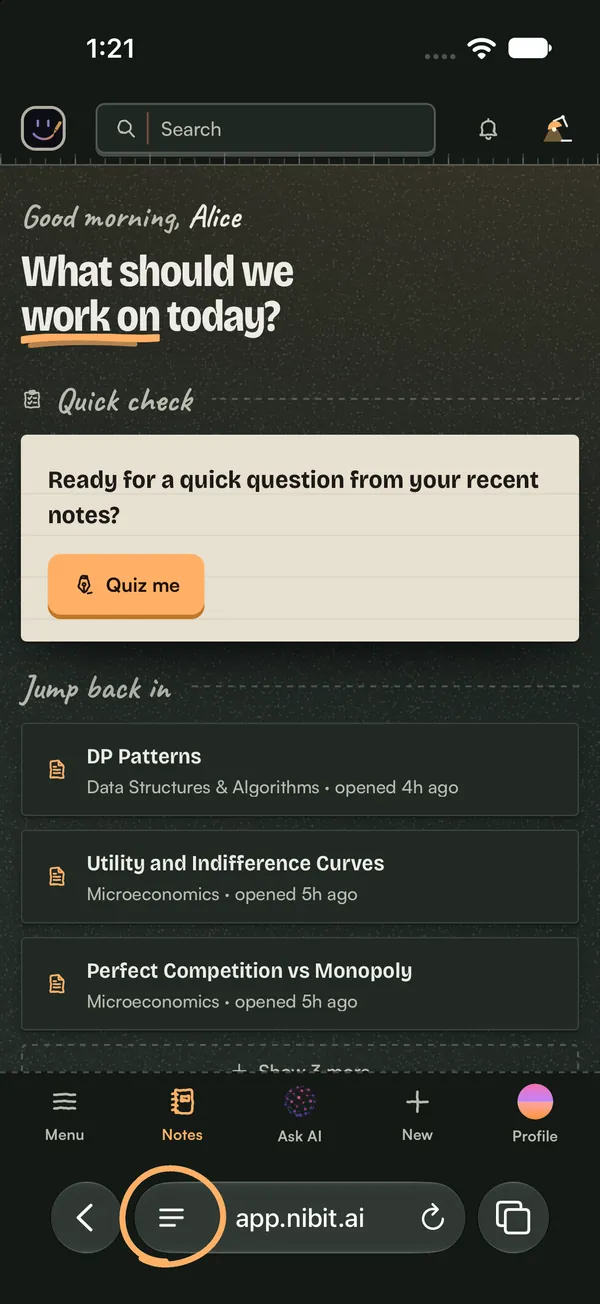
Open app.nibit.ai in Safari, then tap the page menu button beside the address.
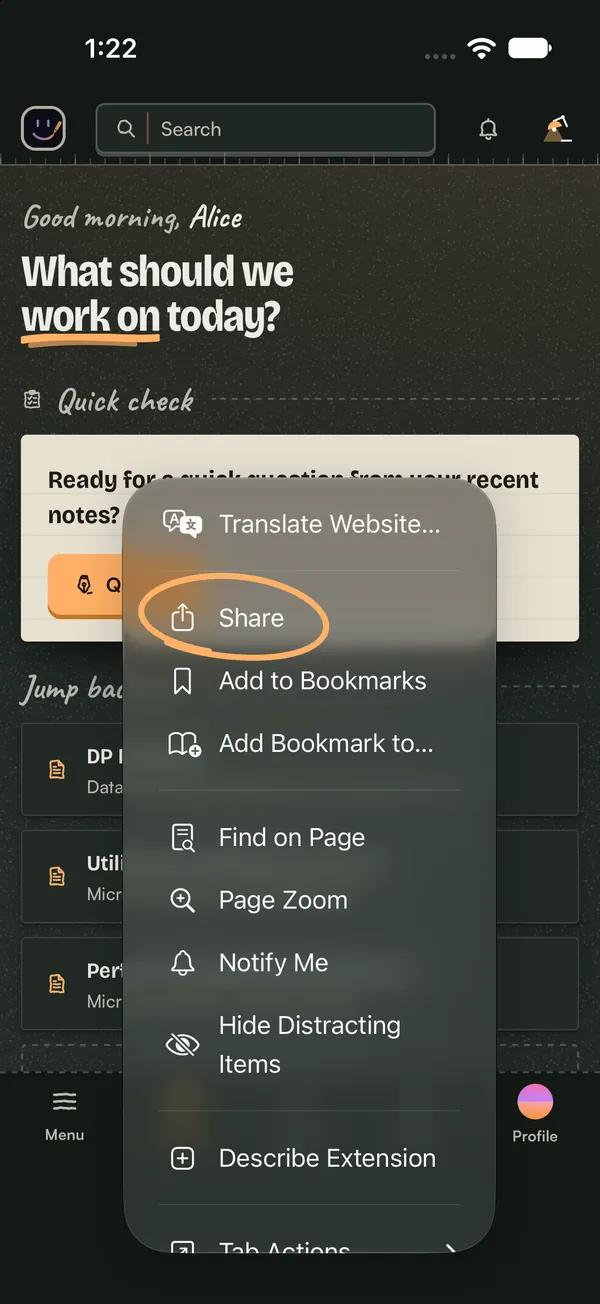
Tap Share.
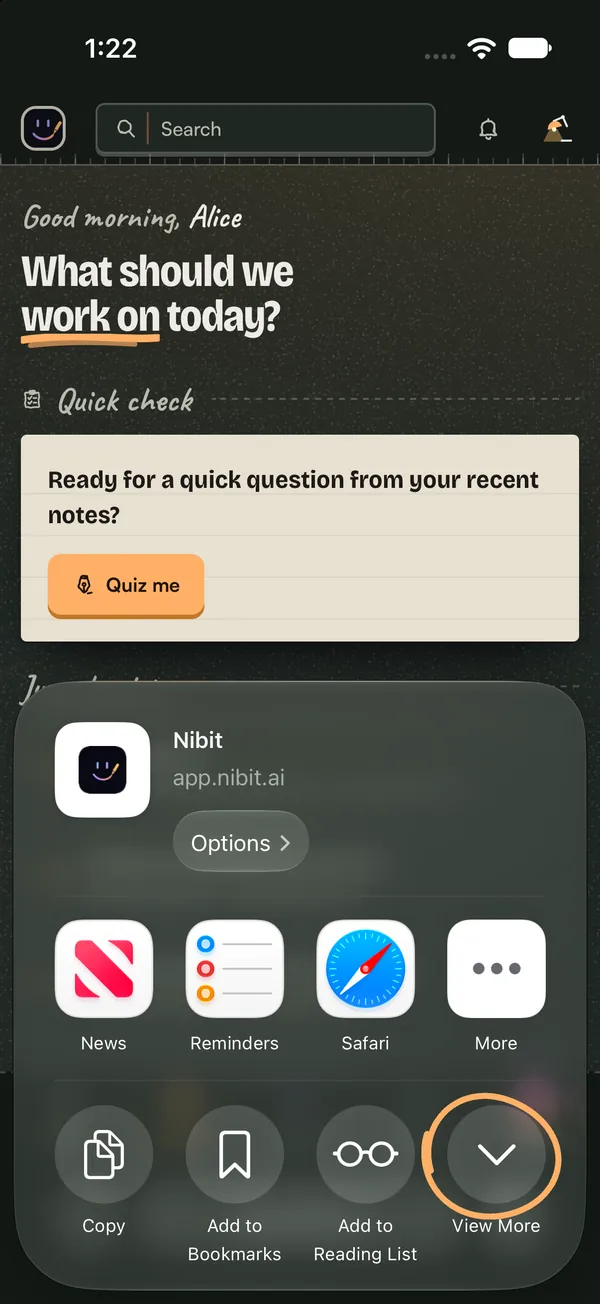
Tap View More to open the full list.
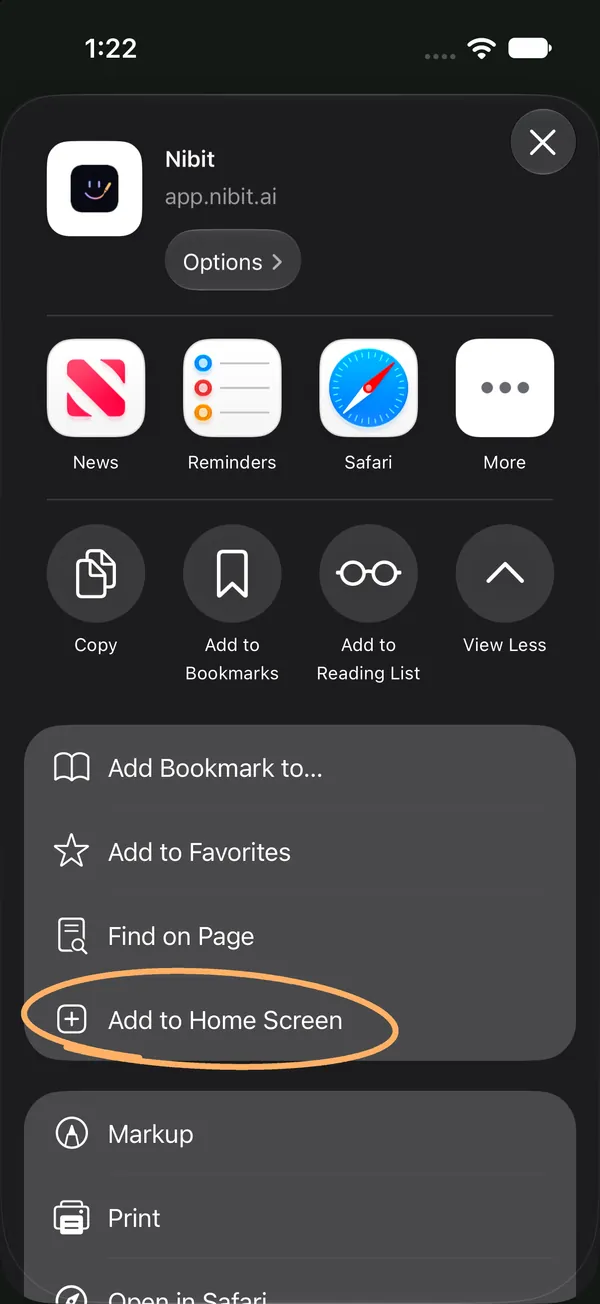
Scroll down and tap Add to Home Screen.
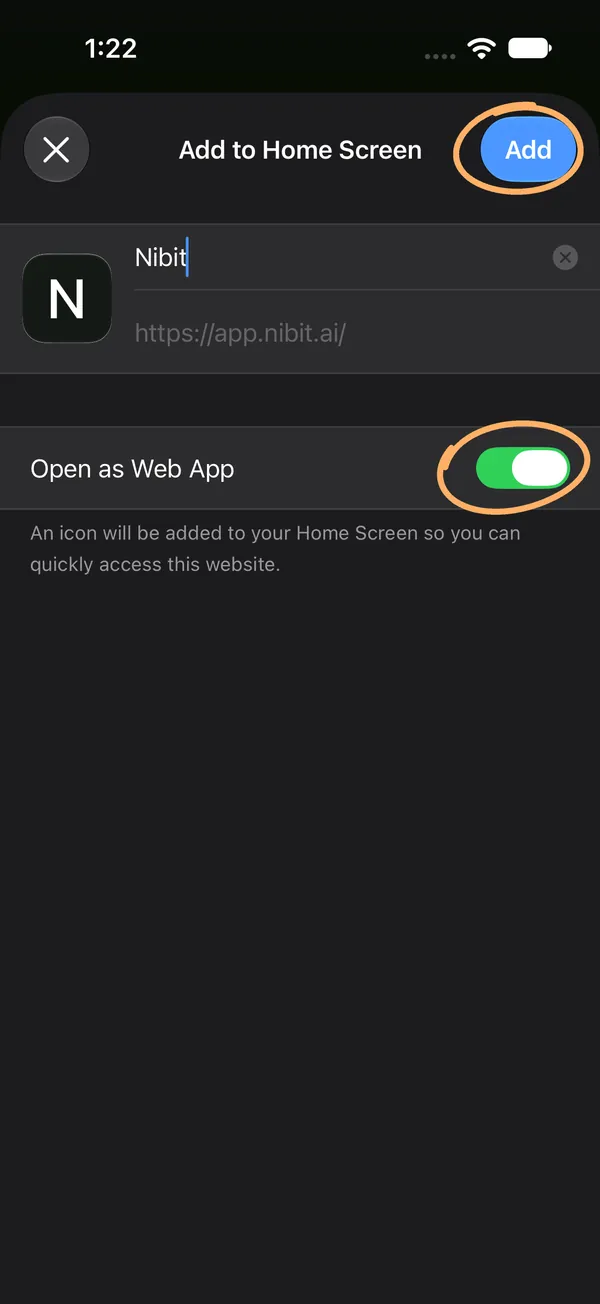
Leave Open as Web App switched on, then tap Add. You can rename the icon here first.
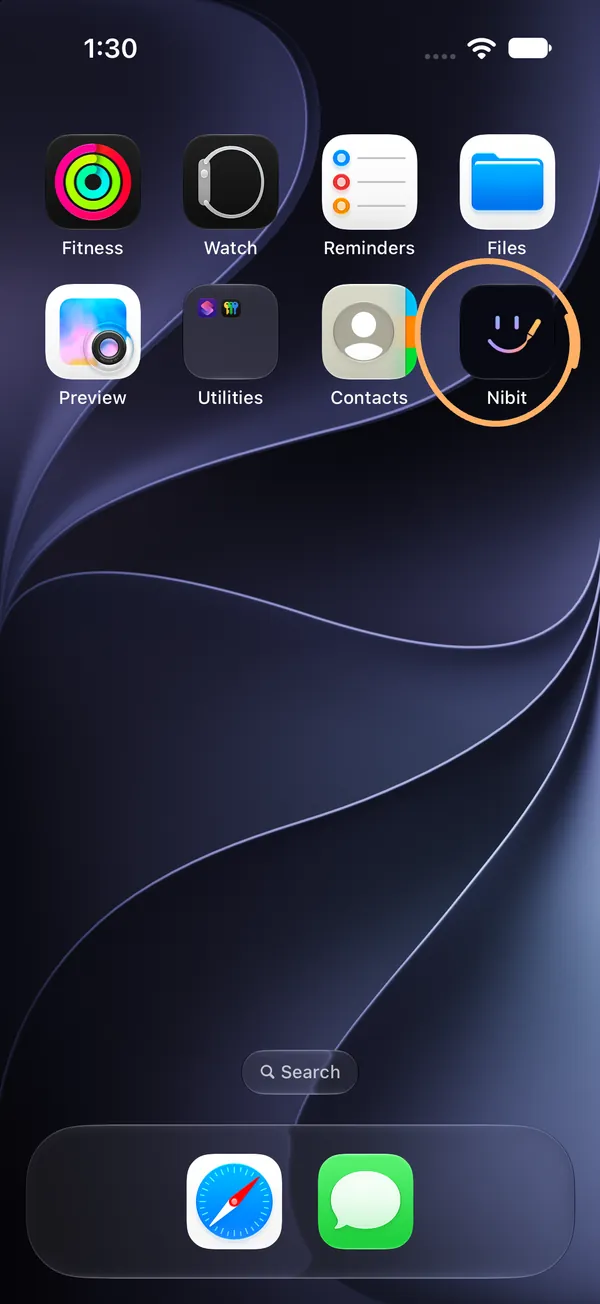
Nibit is on your home screen. Tap it.
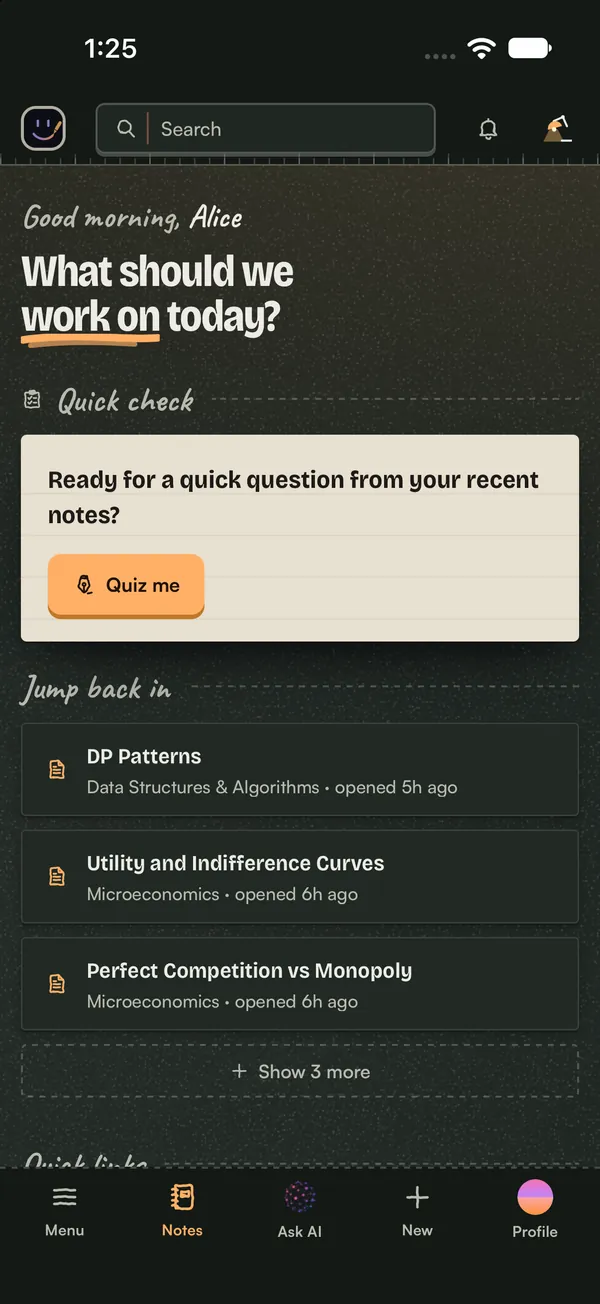
It opens full screen, without Safari’s toolbars, like any other app.
On older versions of iOS, the Share button sits right in Safari’s toolbar, so you can start at step 2.
No Add to Home Screen in the list? Scroll to the bottom of the share menu, tap Edit Actions, and add it from there.
Still stuck? See Apple's guide.
Your notes stay in your Nibit account, so you see the same notebook on your phone, in the browser, and in the desktop app.
02 Android
Add Nibit from Chrome
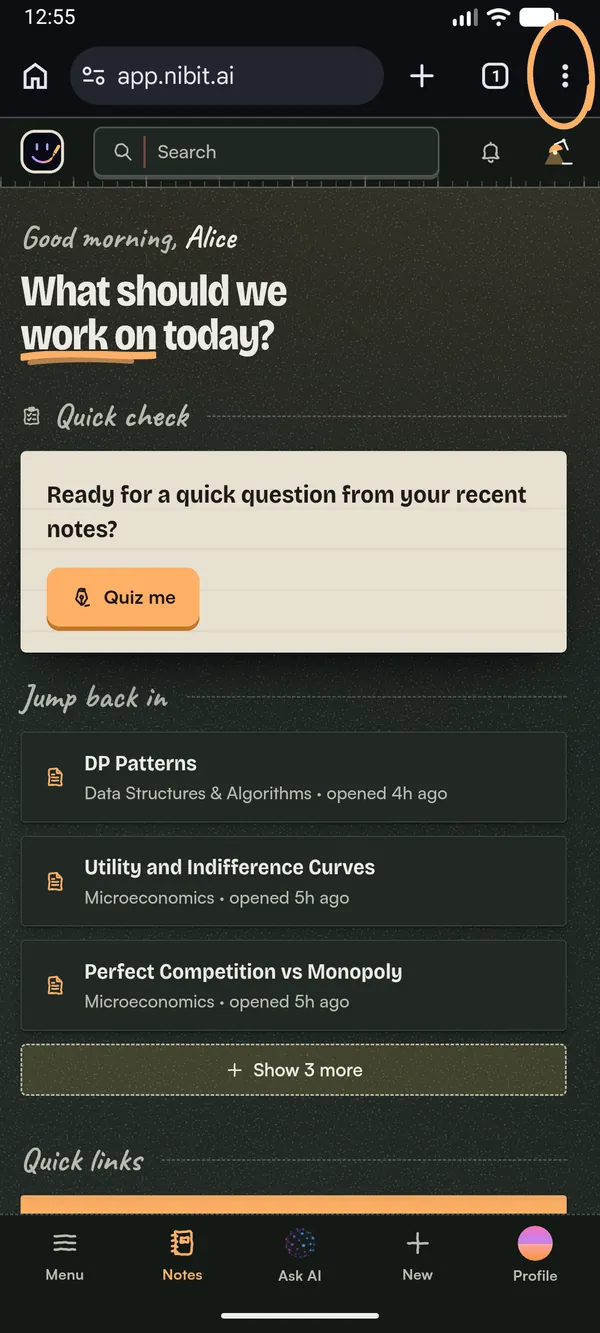
Open app.nibit.ai in Chrome, then tap the three-dot menu at the top right.
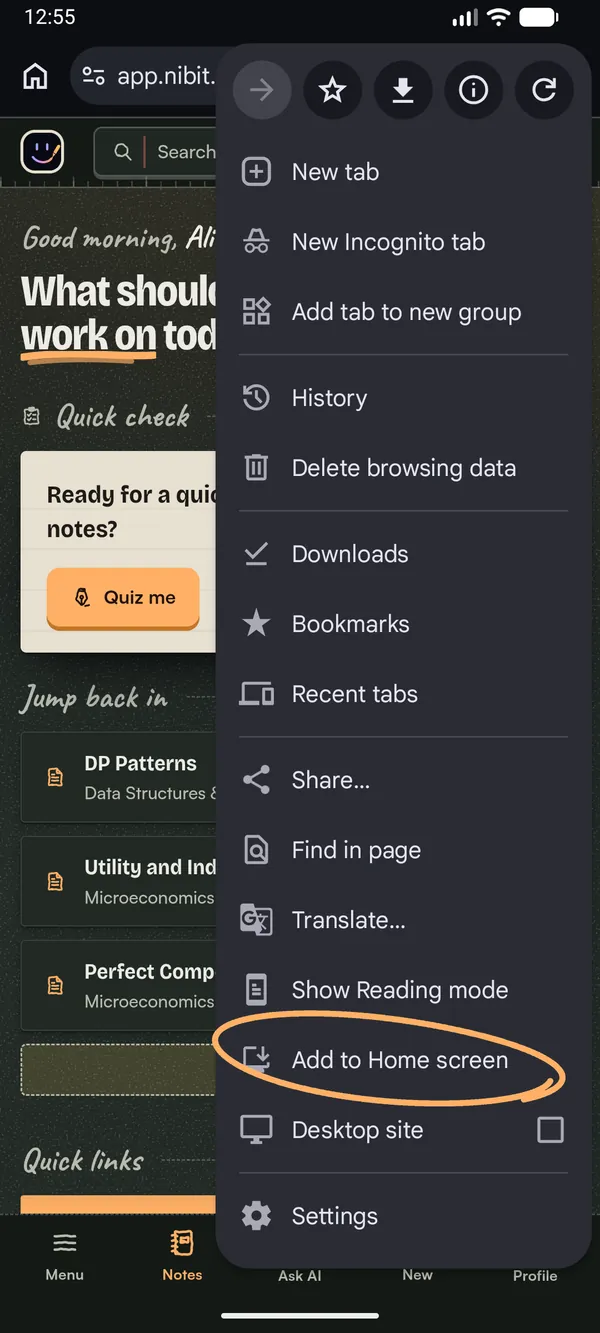
Tap Add to Home screen. On some phones it says Install app instead.
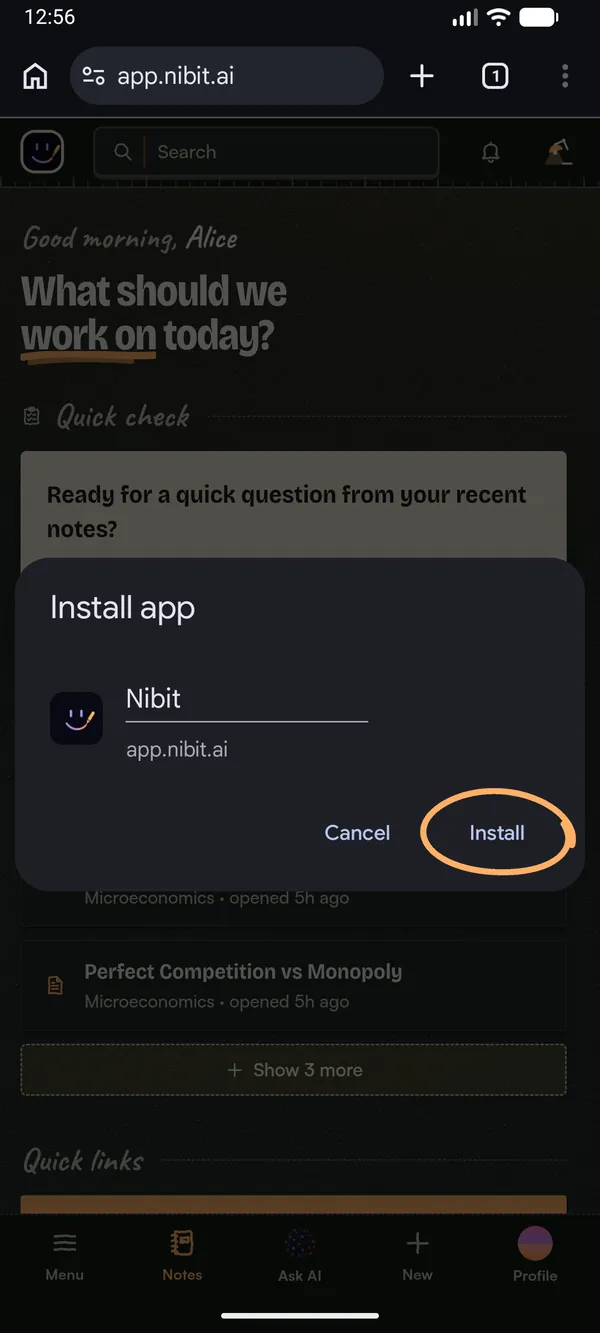
Tap Install. You can rename the icon here first.
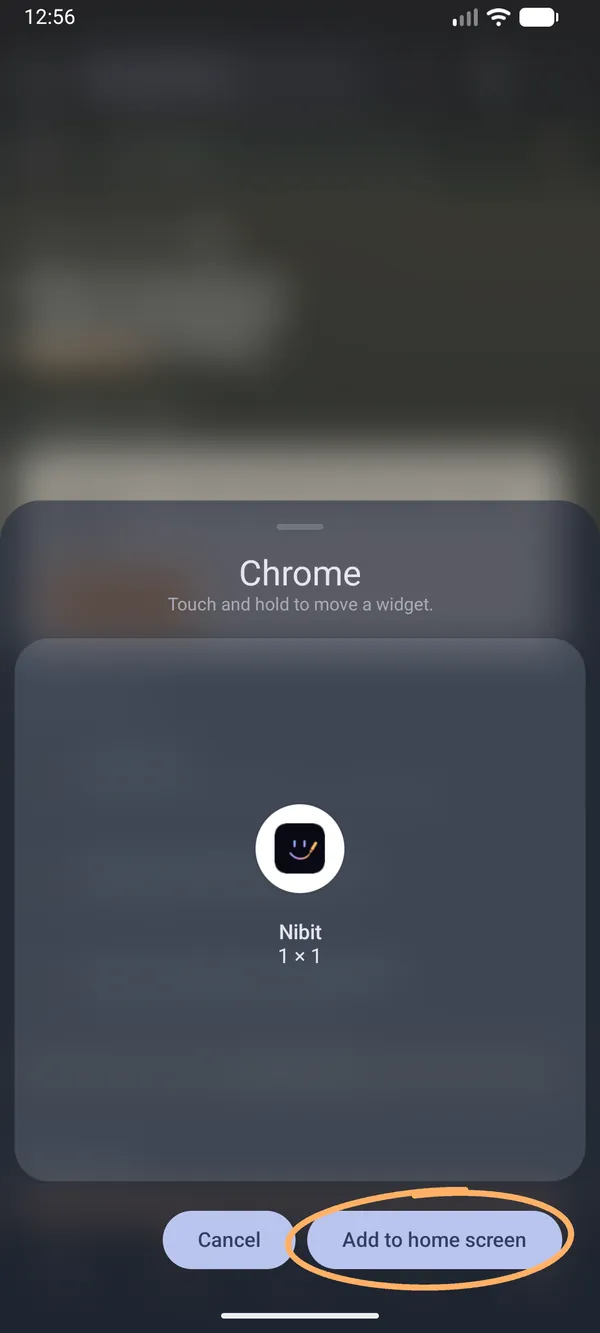
Tap Add to home screen, or touch and hold the icon to drop it where you want it.
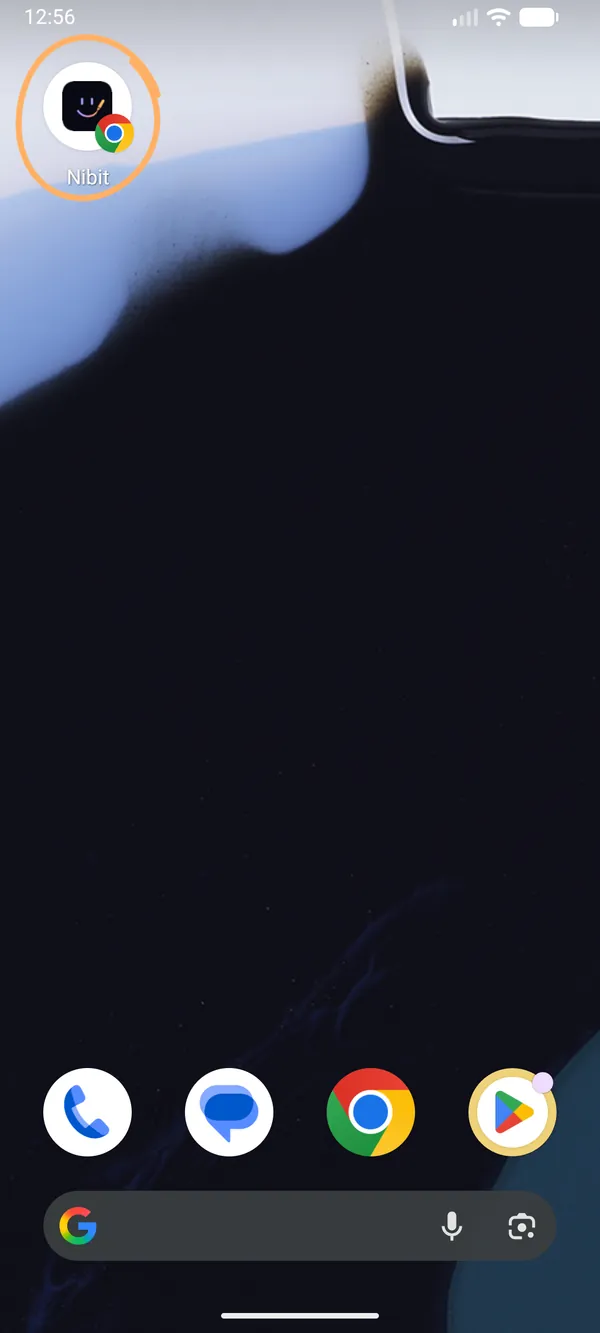
Nibit is on your home screen. Tap it.
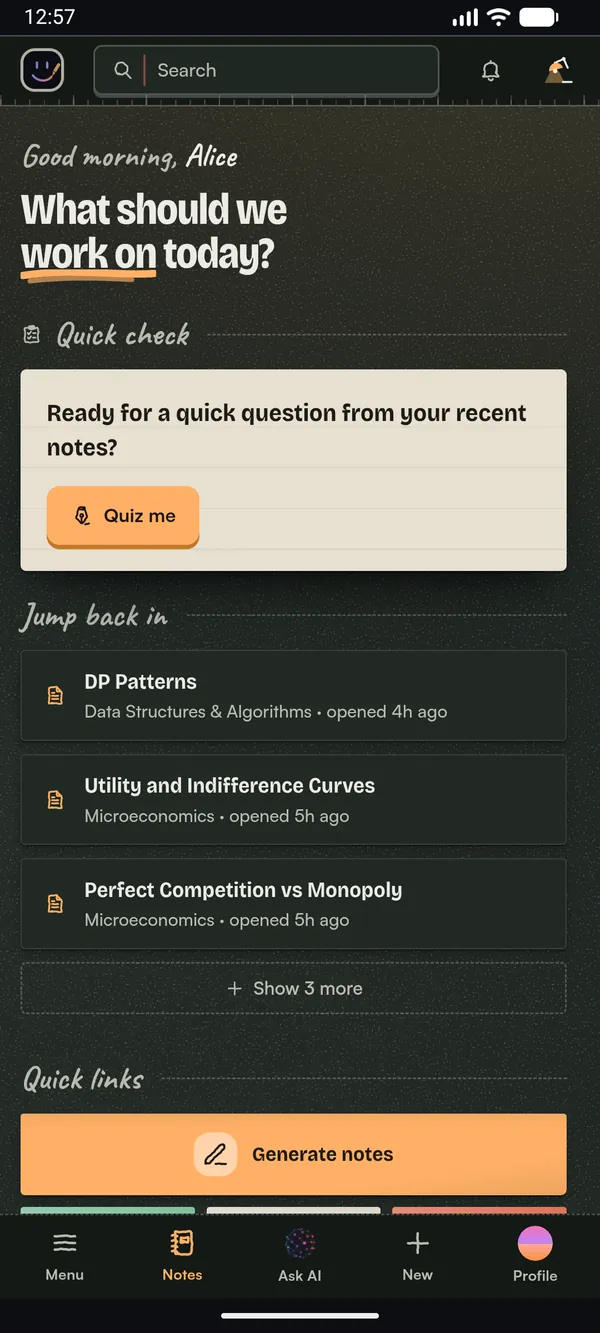
It opens in a window of its own, without Chrome’s address bar.
If Chrome offers to create a shortcut rather than install, that works too, but the shortcut opens Nibit as an ordinary Chrome tab.
Still stuck? See Google's guide to installing web apps and creating shortcuts.
Your notes stay in your Nibit account, so you see the same notebook on your phone, in the browser, and in the desktop app.